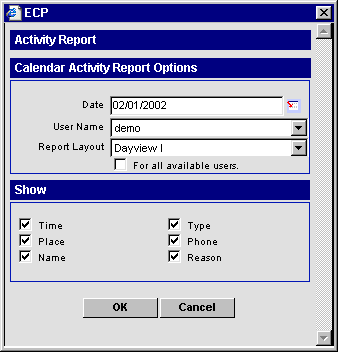
Select Calendar Activity Reports from the Reports menu to set up and print the Activities or To Do items that have been scheduled on the calendar for any day, week, or month.
Report Layout Examples:
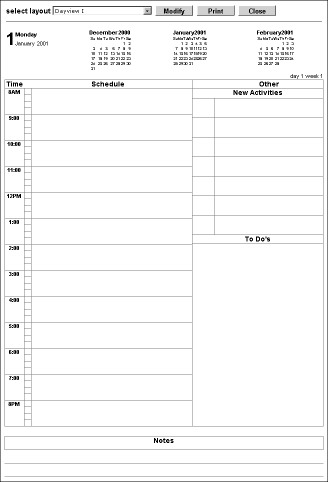
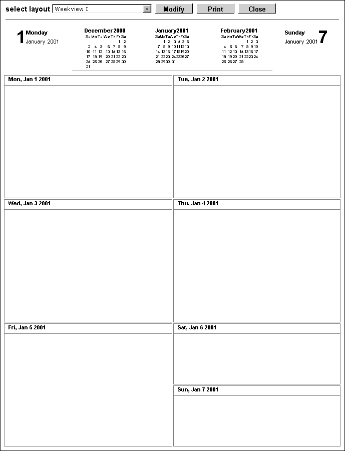
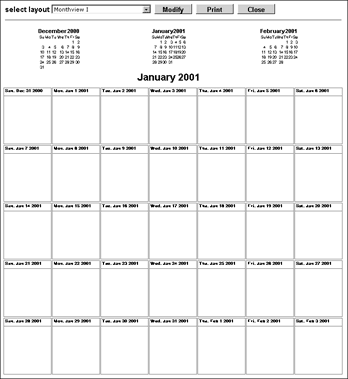
Other calendar view options include:
DayView II - Prints the scheduled activities in three 1/3 paper-width groups (Morning, Afternoon, and Evening), and the To Do and New Activities items below the scheduled activities at full-width.
DayView Landscape - Prints the DayView I calendar in landscape format.
DayView Summary - Prints the activities for the day in summary format.
Trifold - Divides the calendar page into thirds and prints in landscape format. The scheduled activities are on the left, the months of the current year are in the middle, and the To Do list is on the right. The left and right thirds of the page can be folded over the middle to form a booklet.
Generating Dynamic Activity Reports
Select Dynamic Reports from the Reports menu to open the Search Dynamic Report dialog box.
Select Calendar Activity from the Category drop-down list.
Click the Search button to open the Dynamic Report Summary list.
Note: To sort the list by the column heading of your choice, click the column heading hypertext.
Tag a report and then click the Run Report button to generate the report.
