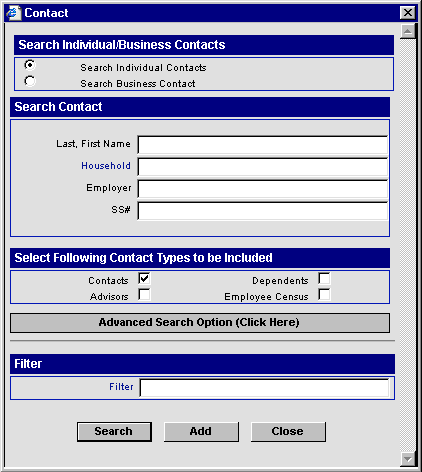
Select the Search Individual Contacts option.
Enter a name or other information that you want to search for in the Search Contact fields.
-
Enter partial or complete names to search for. Using fewer letters and numbers in a field broadens the database search, while more letters and numbers narrows the search. For example, searching for And as the last name would locate records for Contact names such as Andersen, Anderson, and Andrews. Adding a first initial, separated by a comma (e.g., And,M) would locate Contact records with the same variations of the last name, but only if the Contact's first name begins with the first initial that was added to the search criteria.
-
Click the Household field name to locate a specific household name to use for the search criteria.
-
Enter a comma in the Last, First Name field to open a list of all contact records.
Select the type of records to Include in the search.
-
At least one type of record must be selected. (The default type of record is Contact.)
-
The types of records that are not selected are excluded from the search. For example, if you search for the last name "smith" and select Advisors as the only type of records to include, Contact, Dependent, and Employee Census records with the last name of "smith" will not be displayed in the search results.
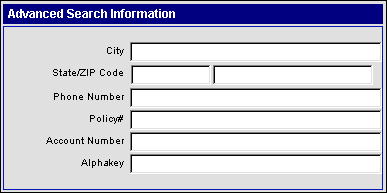
Click the Advanced Search Option button to expand the search capabilities.
The Advanced Search Option expands the dialog box to include the City, State, ZIP Code, etc. fields.
Select a Filter, if applicable.
-
Click the Filter field link to open the Filter Summary list.
-
Select a Filter to enter the information in the Search Contact Filter field.
-
When a single record that matches the search criteria is found, the record will open.
-
When multiple records that match the search criteria are found, the search results are displayed in a summary spreadsheet.
-
When no records are found that match the search criteria, the user is prompted to add a new record.
Click the Search or Add button.
-
The Add button opens a blank Contact record.
-
The Contact Search dialog box closes automatically when the Add button is pressed and transfers any information in the fields (except Household) to the corresponding fields of the new record.
-
The check boxes under Include have no affect when adding a Contact record.
-
The Search button starts the database search for the information and record criteria entered.
-
When a single record that matches the search criteria is found, the record will open.
-
When multiple records that match the search criteria are found, the search results are displayed in a summary spreadsheet.
-
When no records are found that match the search criteria, the user is prompted to add a new record.